
App overview
Aurral indexes the music in its Downloads Folder and, if you connect Lidarr, in the Lidarr root folders. This page describes each part of the app.
Main sections
Section titled “Main sections”Discover
Section titled “Discover”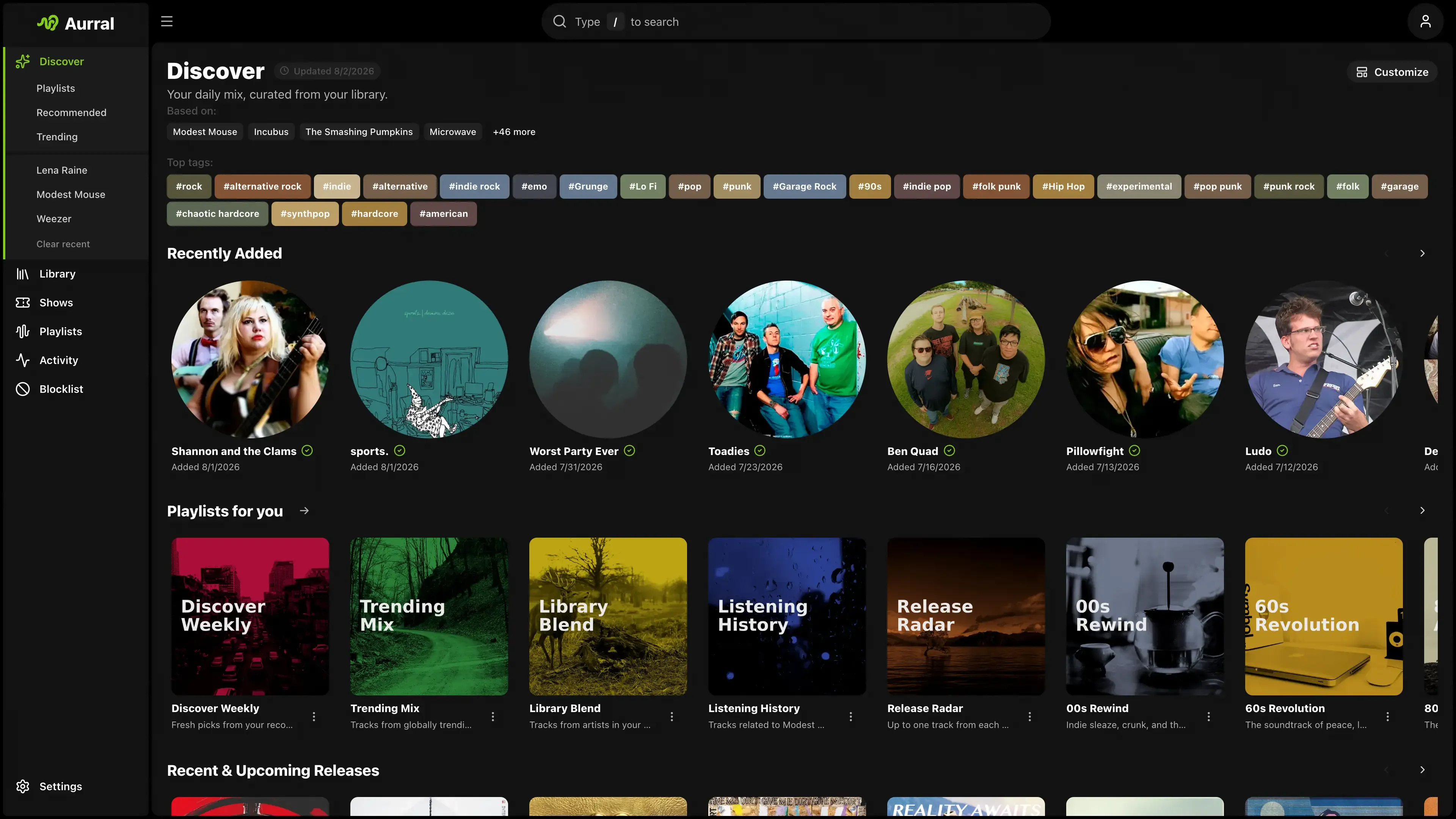
Discover shows recommendations, trending artists, tags, recent and upcoming releases, playlists, artist news, and nearby shows. Each user chooses which sections appear and in what order. See Discover.
The bell icon beside the profile menu opens the Inbox. It collects new releases from library artists, nearby shows, artist news, and new discoveries. Each user has their own read, saved, dismissed, and added state. See Inbox.
Search
Section titled “Search”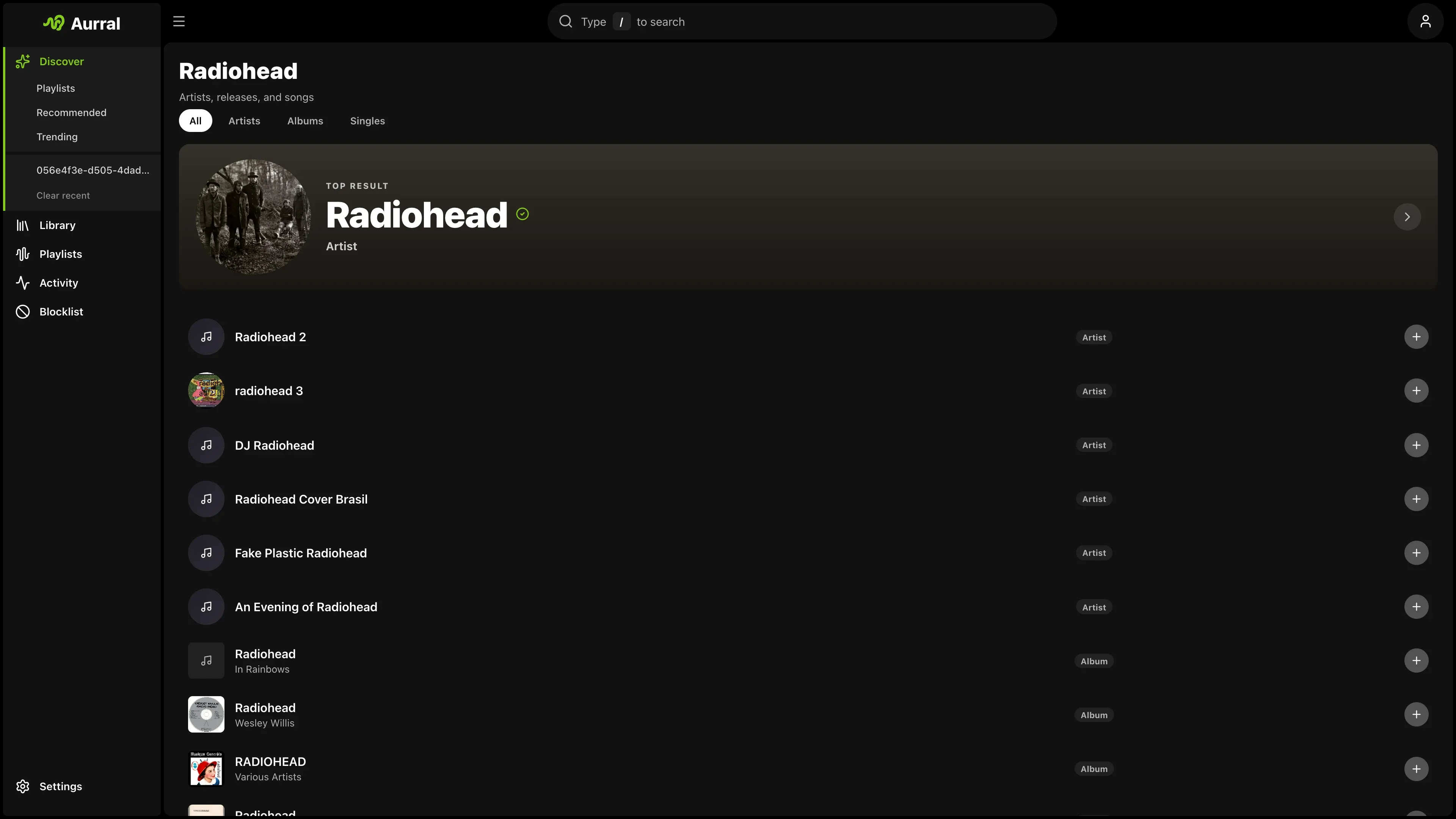
Search finds artists, albums, and tags. From the results, you can preview tracks, see what is already in the Library, and add an artist or album.
Matches from your Library appear first, in their own section, and open the Library page. Results from the metadata catalog follow under Discover.
Library
Section titled “Library”Library lists the artists, albums, and tracks that Aurral has indexed. You can search, sort, play tracks, mark favorites, and open artist and album pages. See Library.
When Lidarr is connected, Lidarr manages the artists and albums you add and keeps their files in its root folders. Without Lidarr, Aurral manages them and keeps their files in the Downloads Folder. Either way, Aurral downloads the tracks for playlists and flows. Turning Lidarr off removes its music from the Library. See Who manages your library.
Artist and album pages have a Discover view and a Library view. Select Open in library or Open in Discover to switch between them.
The manager in charge can also monitor an artist and download its releases. See Monitor music.
Playlists and Flows
Section titled “Playlists and Flows”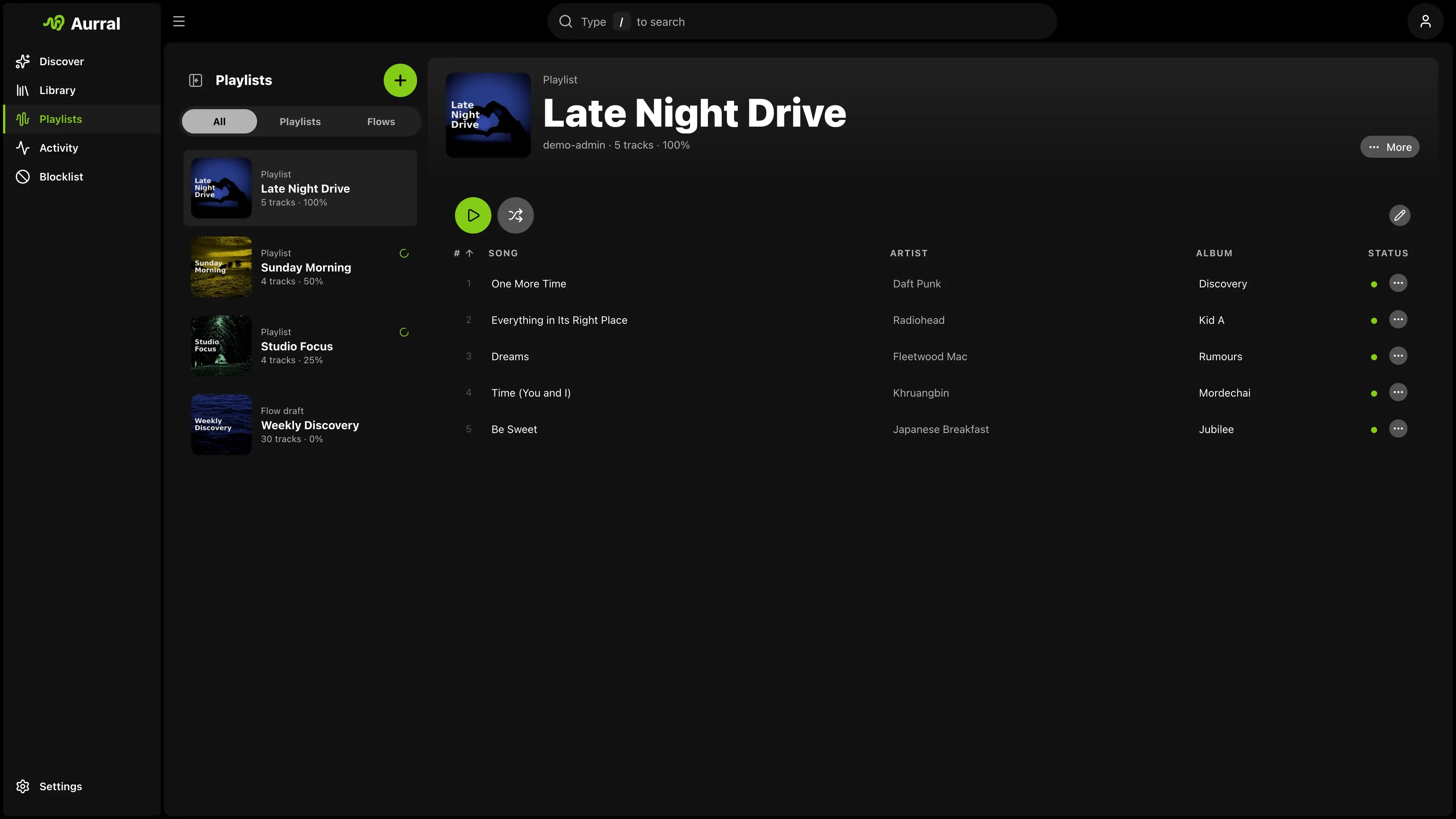
Library > Playlists holds your static playlists and their download status. Flows in the sidebar holds your scheduled discovery mixes.
A flow builds a new tracklist on a schedule. A static playlist keeps a fixed tracklist, or follows a Spotify, YouTube Music, Deezer, Last.fm, or ListenBrainz playlist. You can play both in Aurral. Navidrome, Plex, Jellyfin, and other Subsonic clients are optional. See Playlists overview.
News in the sidebar lists recent stories from your RSS feeds that mention library artists or recommended artists. An admin turns on news in Settings > RSS news.
Activity and Wanted
Section titled “Activity and Wanted”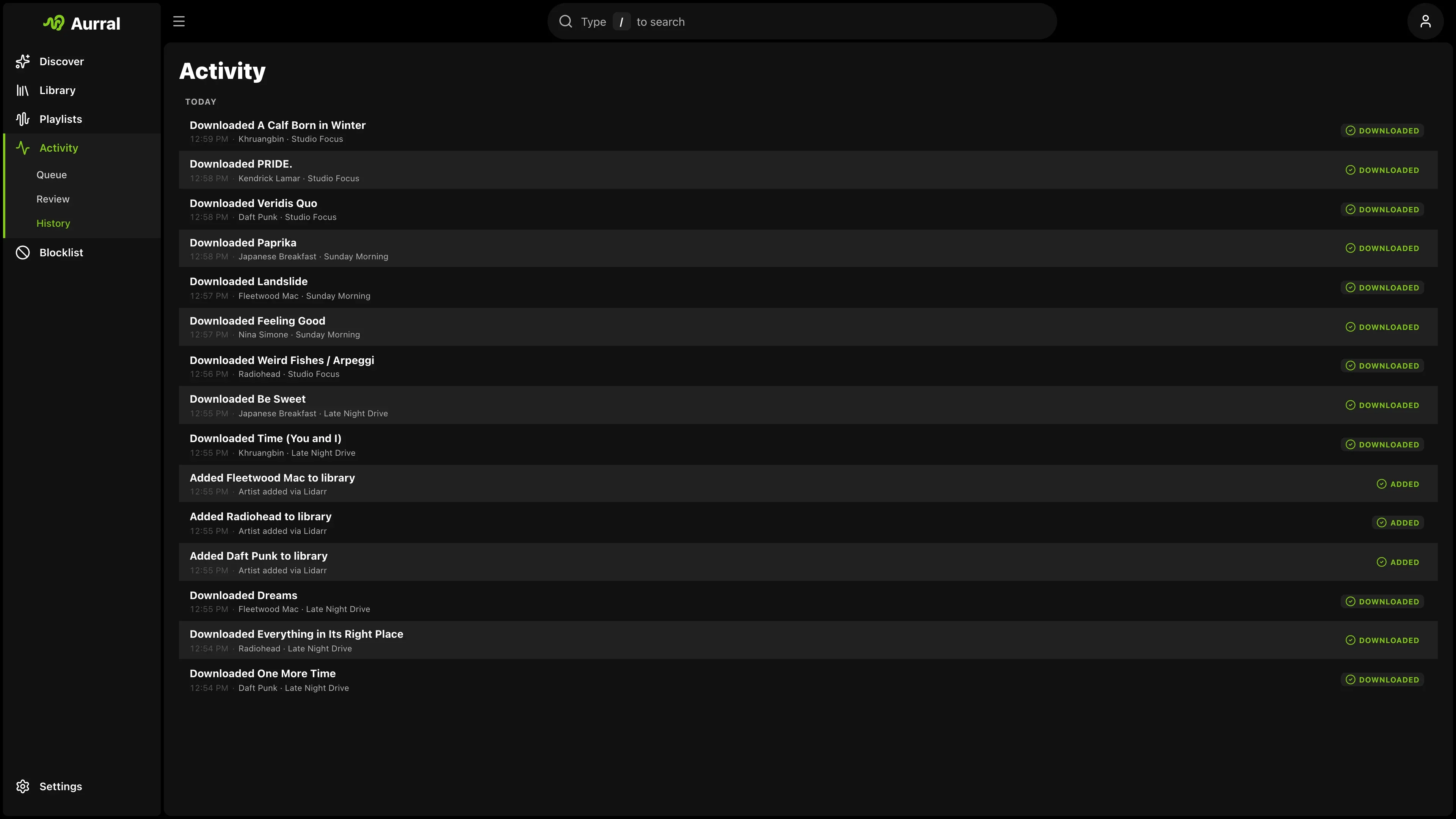
Activity shows downloads, album requests, and playlist jobs. Queue lists active work and tracks that wait for your review. History lists finished, denied, and failed work.
Wanted lists Aurral tracks that are missing or below your quality cutoff. From there, you can search again, choose a download yourself, or search for an upgrade. See Activity.
Blocklist
Section titled “Blocklist”The blocklist holds the artists that you excluded. Aurral removes them from recommendations, playlist previews, and future playlist downloads.
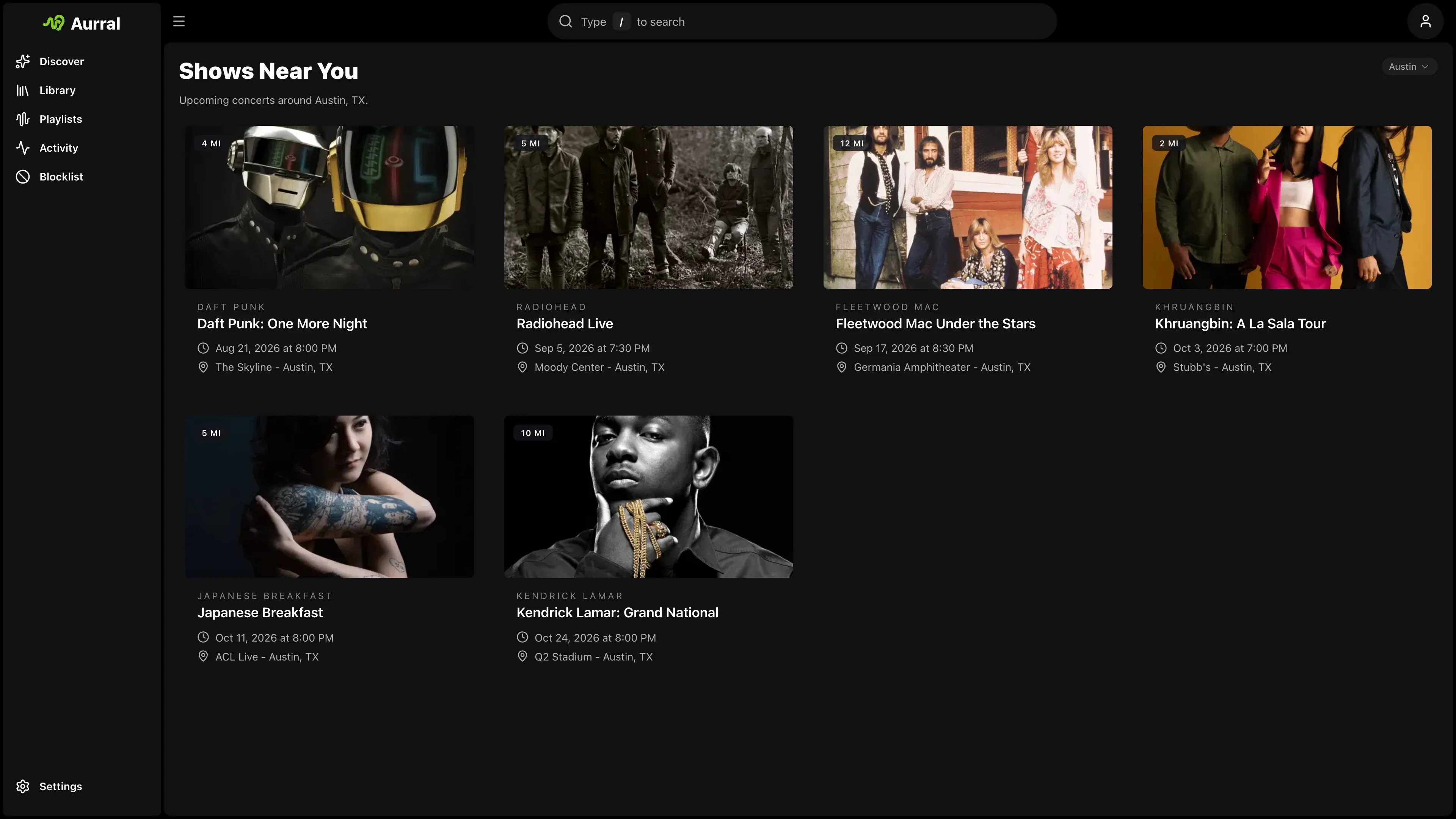
When an admin configures Ticketmaster, Shows lists nearby concerts for library, recommended, and trending artists.
Profile
Section titled “Profile”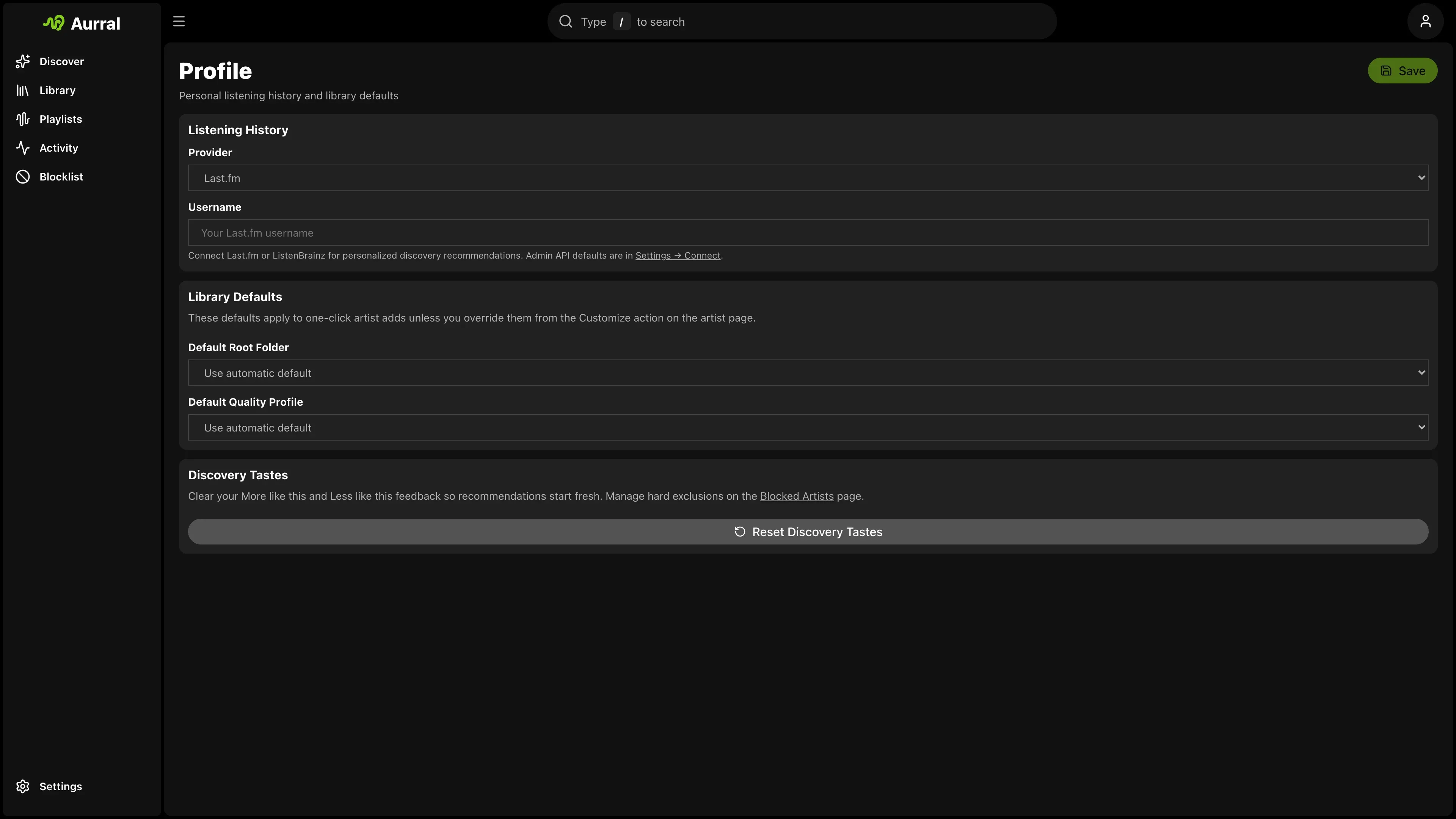
Profile holds your personal settings:
- Appearance. Choose System, Light, or Dark mode and a theme. Every theme has a light and a dark version. When a theme has only one, Aurral generates the other. Your choice is saved to your account, so it follows you to other devices.
- Create theme starts from the current theme. Pick a background, text, and accent color for each mode. Aurral adjusts text and accent colors that would be hard to read.
- Import accepts an exported Aurral theme or a base16 or base24 scheme. Find schemes in the Tinted Gallery and paste the scheme’s source file.
- Match album art takes the accent color from the cover of what’s playing and lightly tints the background with it.
- Listening history. Choose Local only, Last.fm, ListenBrainz, or Koito.
- Connected accounts. Link a Google or Plex account that you can use to sign in. See Users and authentication.
- Plex account. Link your own Plex account for your playlists.
- Library defaults. Choose your default Lidarr root folder and quality profile. This section shows only while Lidarr is connected.
- Discovery tastes. Reset your recommendation feedback, or open your blocklist.
Settings
Section titled “Settings”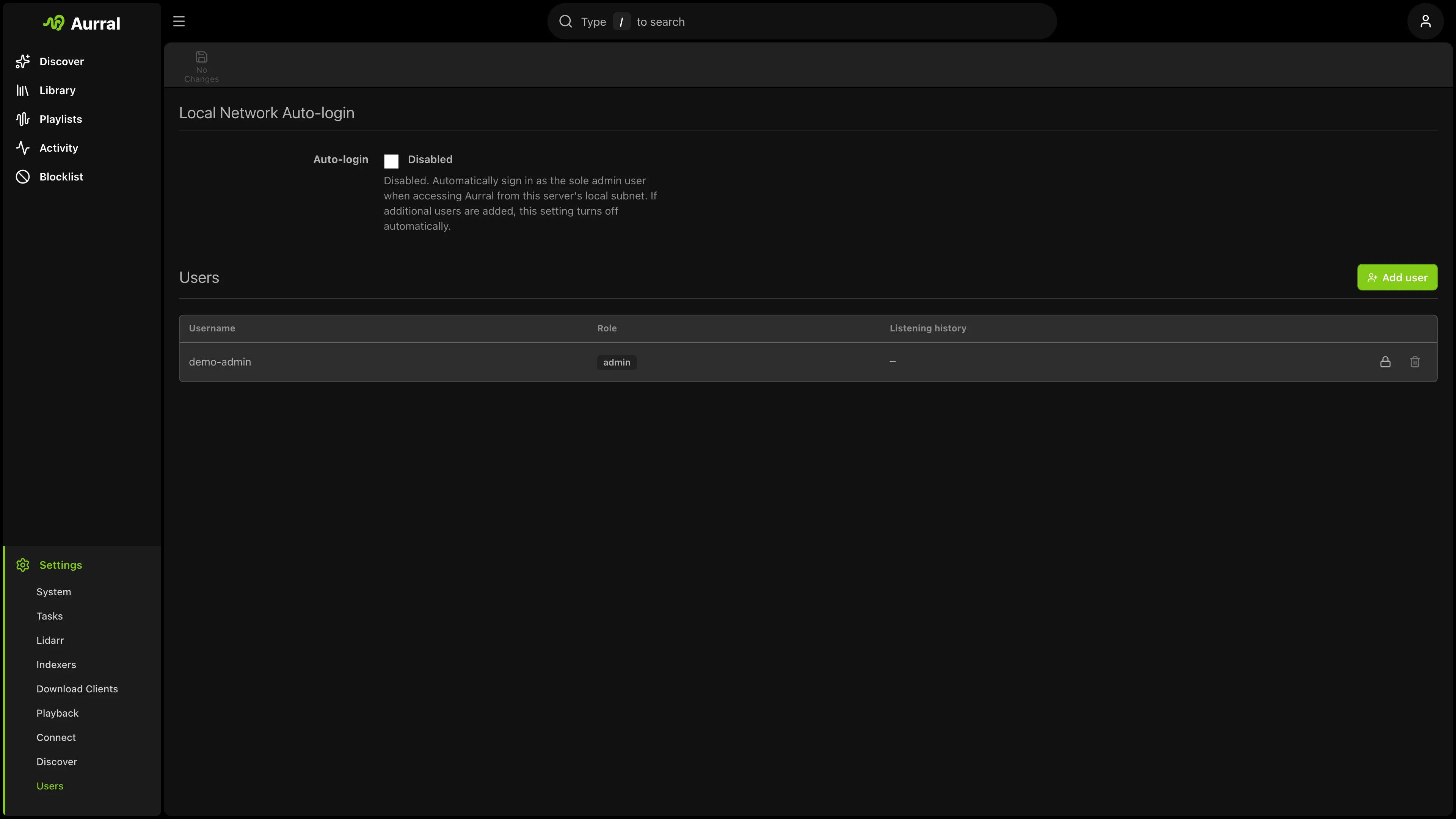
Settings holds the admin configuration. It has these tabs:
| Tab | What it covers |
|---|---|
| System | Runtime details, date format, Subsonic behavior, and the API key |
| Storage health | Checks for storage, downloads, Lidarr files, path mappings, and playback |
| Tasks | Scheduled jobs, workers, and the job queue |
| Lidarr | Lidarr connection, the Enabled switch, defaults, and library display |
| Indexers | Prowlarr connection, indexers, and indexer priorities |
| Download clients | Quality profile, Downloads Folder, remote path mappings, and download clients |
| Monitoring | Default monitoring rules for Aurral’s artists, searches for missing tracks, and what you removed from monitoring |
| Playback | Navidrome, Plex, Jellyfin, scrobbling, and cover art |
| Connect | Gotify, webhooks, Last.fm, Ticketmaster, Google sign-in, and Inbox |
| RSS news | RSS feeds and feed groups |
| Discover | Recommendation refresh and discovery mode |
| Users | Accounts, permissions, account status, sign-in mode, and local-network auto-login |
Use the search field in Settings to find a setting by name.
Settings and Profile save each change automatically. Connection tests and sync actions have their own buttons. The default monitoring rules have a Save button, and Aurral shows what a change would download before it applies it.
To set the date and time format for all users, open Settings > System > Display. Choose the browser default, day first, or year first.
Advanced metadata settings are at /settings/metadata. This page is not in the Settings navigation. See Metadata and search.
Release catalogue refreshes have a separate worker in Settings > Tasks, so a slow metadata provider does not hold up playlist maintenance. An Interrupted run means unfinished work was returned to the queue after shutdown or loss of its execution lease.