
Flows
A flow is a playlist that Aurral builds again on a schedule. Aurral downloads flow tracks as temporary files under _flows in the Downloads Folder. It can publish the flow to Navidrome, Plex, or Jellyfin without adding the files to the Library.
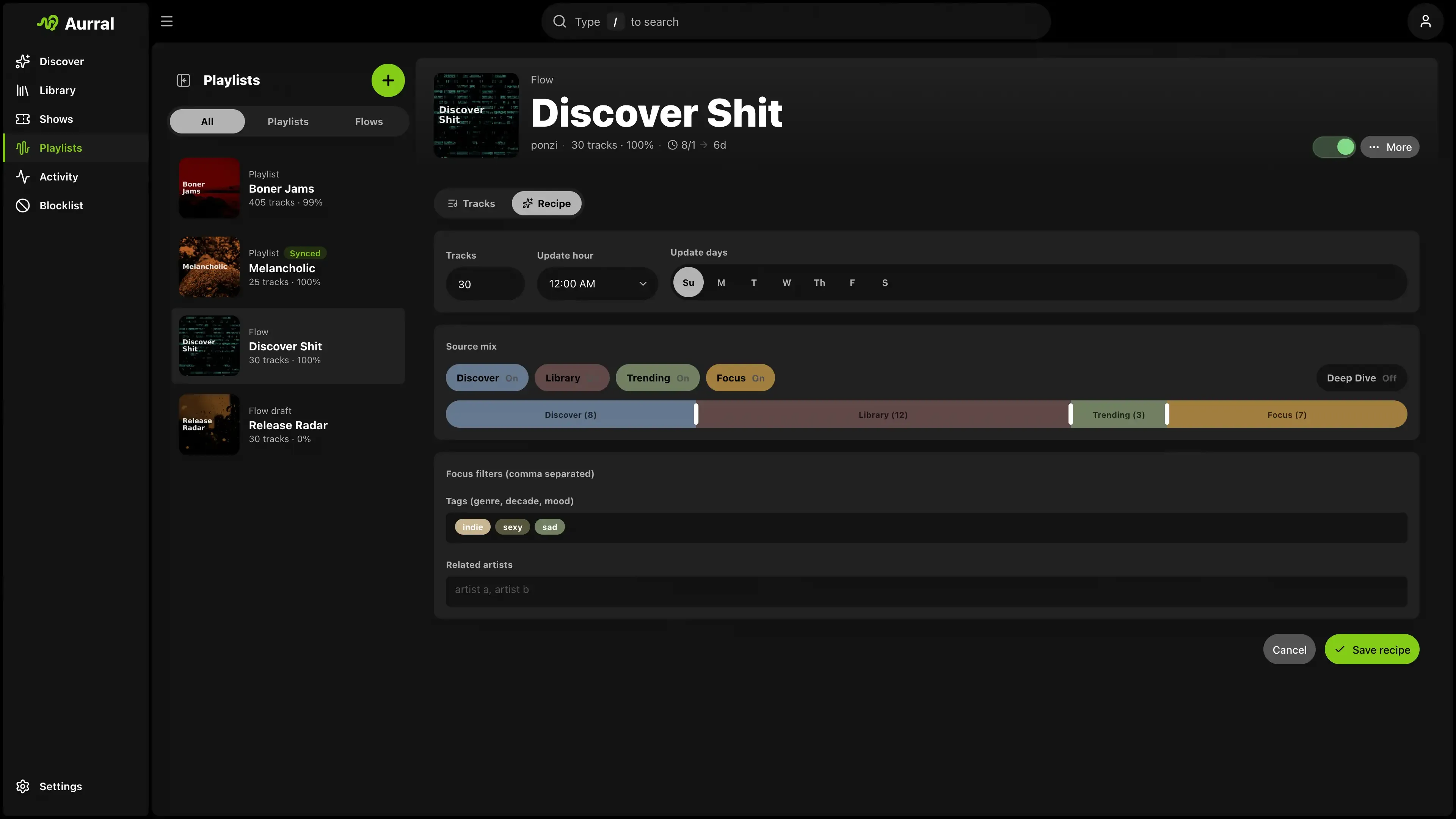
A flow has three groups of settings:
- Schedule sets when the flow runs.
- Source mix sets where the tracks come from.
- Focus sets what the Focus source looks for.
Schedule
Section titled “Schedule”- Tracks sets the playlist size.
- Update days sets the days when the flow can run.
- Update hour sets the hour of those runs.
Start from a template
Section titled “Start from a template”Select New flow and choose Blank flow or a template:
- Discover Weekly picks from your recommendations.
- Trending Mix picks from trending artists.
- Library Blend picks from artists in your Library.
- Listening History focuses on artists you’ve played recently. It appears only when Aurral has listening history for you.
- Release Radar picks one track from each recent album you don’t have yet.
You can change a template’s recipe afterwards, except Release Radar, which only lets you change its size and schedule.
A new flow runs only after you turn it on. A flow that is turned off keeps its settings but does not run.
Source mix
Section titled “Source mix”| Source | Tracks come from |
|---|---|
| Discover | Aurral’s recommendations. Excludes library artists and blocked artists. |
| Library | Artists in your Library. |
| Trending | Wider trending lists. Excludes library artists and blocked artists. |
| Focus | Artists outside your Library that match your tags or related artists. Excludes blocked artists. |
Only the Library source uses library artists. If you turn off Library, Aurral keeps your Focus settings and removes only the Library source from the mix.
One slider sets the share of each source that is turned on:
- With four sources on, the slider is a four-way mix.
- With two sources on, it is a two-way split.
- With one source on, that source gets 100%.
The numbers on the slider show how many tracks each source supplies at the current flow size. When you turn a source off, Aurral removes it from the mix. When you turn it on, Aurral adds it back.
Deep Dive
Section titled “Deep Dive”Deep Dive changes which tracks Aurral takes from each artist. When it is off, Aurral uses the artist’s top 10 tracks. When it is on, Aurral uses tracks 10 to 25. If an artist has too few tracks in that range, Aurral falls back to the top 10.
Deep Dive does not change the schedule or the source mix.
Scrobbling and library
Section titled “Scrobbling and library”Open the flow menu to set these options:
- Scrobble tracks controls whether Aurral records plays from this flow in your listening history. Turn it off to keep these plays out of your recommendations and your scrobbling services. Plays recorded before the change stay.
- Show in library adds the flow’s current tracks to the Library pages. It is off by default. A track leaves the Library when it rotates out of the flow, when you turn the option off, or when you delete the flow. Aurral does not move or copy the files. Lidarr and your playback servers do not change.
Focus is the fourth source. It does not change the Discover, Library, or Trending sources.
- Tags set the genres, decades, or moods that Focus looks for.
- Related artists set the artists that Focus finds similar artists for.
- Release year(s) limits Focus to a range of years. Leave it blank for no limit.
To turn on Focus, add at least one tag or related artist. When you turn off Focus, Aurral keeps your tags, artists, and years but does not use them.
Year range examples:
1980to1989for one decade2020to blank for 2020 and later- blank to
2000for 2000 and earlier
Aurral looks up release years when it needs them. While a year range is set, Focus skips tracks with an unknown year. The other sources ignore the year range.
To enter several tags or artists, separate them with commas. Aurral turns the text into entries after each comma, or when you leave the field. It ignores duplicates.
How Focus widens its search
Section titled “How Focus widens its search”Several tags or related artists find common matches first. For example, acoustic, sad first finds artists that match both tags.
When you enter both tags and related artists, Focus tries these groups in order and moves to the next group only when it needs more tracks:
- Artists related to all your artists that match all tags
- Artists related to all your artists that match one or more tags
- Artists related to any of your artists that match all tags
- Artists related to any of your artists that match one or more tags
- Artists related to all your artists, with any tags
- Artists related to any of your artists, with any tags
- Artists that match all tags
- Artists that match one or more tags
Focus does not change the other sources. For a playlist that follows your Focus settings closely, give Focus a high share or use it alone.
How a flow runs
Section titled “How a flow runs”When a flow runs, Aurral:
- Sets the track count and the share of each source.
- Collects a large set of candidates for each source that is turned on.
- Collects a separate set for Focus, if Focus is on.
- Picks the playlist with one song per artist.
- Moves any shortfall in one source to the other sources.
- Keeps a reserve of candidates from the same run.
- Sends the playlist to the download worker.
If a download fails, Aurral replaces the track with a reserve candidate. Only flows do this. A static playlist keeps its exact tracks. See Playlist imports.
Keep flow tracks
Section titled “Keep flow tracks”- To keep one track in the Library, select Add to library in the track menu.
- To save all finished tracks as a static playlist, select Save as playlist in the flow menu. Aurral names the new playlist after the flow, with
Staticat the end.
Replace a flow track
Section titled “Replace a flow track”To replace a finished track that Aurral downloaded, right-click it and select Re-search:
- Automatic lets Aurral search for and choose a new recording.
- Manual opens a search in one download client. You choose the result. See Choose a download yourself.
The current file stays available until the replacement passes Aurral’s checks.
Lidarr import list
Section titled “Lidarr import list”Each flow can publish a URL that Lidarr reads as a Custom List. Copy it with Copy Lidarr import URL in the flow menu. See Lidarr: Import list feeds.