
Users and authentication
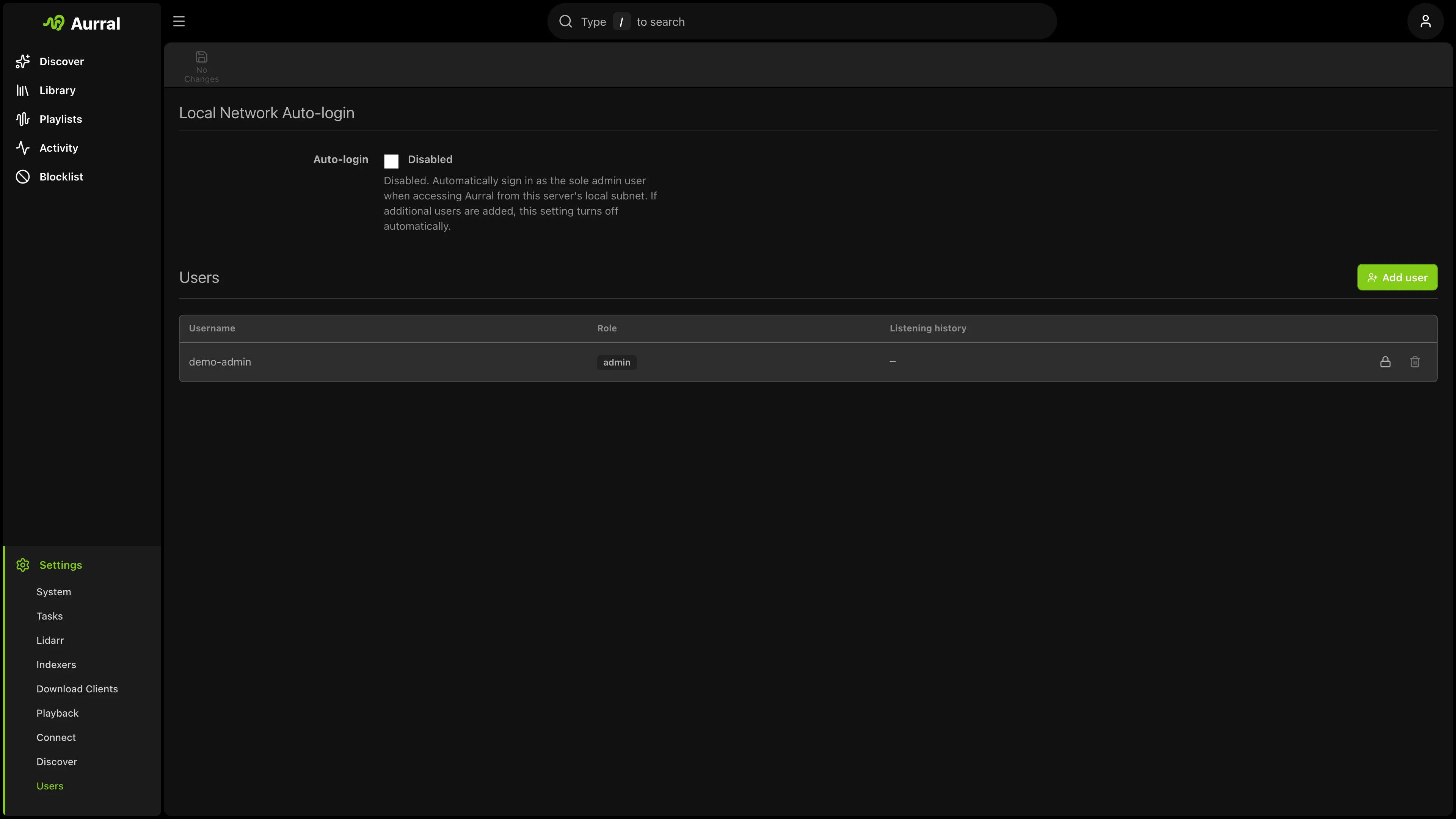
Aurral supports several users. Each user has their own permissions, playlists, listening history, and recommendations. Admins manage users in Settings > Users.
Permissions
Section titled “Permissions”An admin can give each user these permissions:
| Permission | Default for new users |
|---|---|
| Access playlists and downloads | Off |
| Add artist | On |
| Add album | On |
| Change artist monitoring | Off |
| Delete artists | Off |
| Delete albums | Off |
| Delete tracks | Off |
Admins have every permission.
Account status
Section titled “Account status”To stop a user from using Aurral without deleting the account, open Manage for the user and set Status to Suspended or Disabled. The two values have the same effect:
- The user cannot sign in with any method.
- Aurral ends the user’s sessions at once.
- The user’s scheduled flows do not run.
Set Status to Active to restore the account. You cannot suspend or disable the protected recovery admin.
Ways to sign in
Section titled “Ways to sign in”Aurral supports these sign-in methods:
- A local username and password
- Local-network auto-login, for a single admin on a home network
- Native OpenID Connect (OIDC)
- Google, for users who linked a Google account
- Plex, for users who linked a Plex account
- Reverse-proxy authentication
A user can always sign in with their local password, if they have one.
Local-network auto-login
Section titled “Local-network auto-login”Auto-login signs in the only user automatically from the server’s local network. Turn it on during first-run setup, or in Settings > Users > Local network auto-login.
Auto-login works only when all these conditions are true:
- Setup is complete.
- Exactly one user exists, and that user is an admin.
- Aurral can find one trusted IPv4 subnet for the server.
When you add a second user, Aurral turns auto-login off. The setting shows why auto-login is unavailable when a condition is not met.
Native OIDC
Section titled “Native OIDC”Set OIDC_ENABLED=true and register Aurral as a client with your identity provider.
Required variables:
OIDC_ISSUER: the issuer URL, used for discovery.OIDC_CLIENT_ID: the client ID.OIDC_CLIENT_SECRET: the client secret. It is not required whenOIDC_TOKEN_ENDPOINT_AUTH_METHODisnone.OIDC_REDIRECT_URI: exactlyhttps://aurral.example.com/sso/callback, with your Aurral host.
Optional role mapping:
OIDC_DEFAULT_ROLE:user, the default, oradmin.OIDC_ADMIN_USERS: usernames that get the admin role at sign-in.OIDC_GROUPS_CLAIM: the ID-token claim that holds group membership.OIDC_ADMIN_GROUPS: the groups in that claim that give the admin role.
See Environment variables for every OIDC variable.
The sign-in page shows Sign in with SSO. Aurral starts the sign-in at /api/auth/oidc/login, receives the result at /sso/callback, and then creates a normal Aurral session. The username comes from the OIDC_USERNAME_CLAIM claim, which is preferred_username by default. If that claim is missing, Aurral uses email.
The first OIDC sign-in of a new person creates an Aurral account. If the username is taken, Aurral adds the first free number, such as -2. The identity provider sets the role at each OIDC sign-in, so a role that you change in Aurral changes back at the next sign-in.
An account created by OIDC has no local password until an admin sets one.
To end the identity-provider session when a user selects Log out, set OIDC_LOGOUT_URL.
You can configure native OIDC and reverse-proxy authentication together. Choose one of them as the main sign-in method for your deployment.
Link SSO to an existing account
Section titled “Link SSO to an existing account”A user who already has an Aurral account can link SSO to it:
- Sign in another way, for example with the local password.
- Open Settings > Account and select Connect single sign-on under Connected accounts.
- Confirm the password if Aurral asks, then sign in with the identity provider.
Later SSO sign-ins open this account. Aurral refuses the link if the SSO account already belongs to another Aurral account. After the link, the identity provider sets the role at each SSO sign-in, as for any OIDC account. If it does not give the user the admin role, an admin who signs in with SSO becomes a regular user. The protected recovery admin keeps its role.
Claim existing accounts after an upgrade
Section titled “Claim existing accounts after an upgrade”Users can link SSO themselves with Connect single sign-on. An admin can also approve a claim for them.
Aurral links an OIDC user to an account by the issuer and subject in the token, not by the username. An account created before identity linking has no linked identity. If that person signs in with SSO, Aurral creates a new account instead of using the old one.
A matching username does not prove that the person owns the account, so an admin must approve each claim:
- In Settings > Users, find the accounts with a no SSO identity badge.
- Open Manage on an account that you know belongs to an SSO user, and turn on Claim by SSO sign-in. The badge changes to awaiting SSO claim.
- The user signs in with SSO once. Aurral links the identity to the existing account and keeps its flows, history, settings, and permissions.
The first SSO sign-in uses up the approval, and the badge goes away.
To recover, delete the new duplicate account, which has a number such as -2 at the end of its username. Then approve the original account and ask the user to sign in again.
You cannot approve a claim for the protected recovery admin.
Sign in with Google or Plex
Section titled “Sign in with Google or Plex”Google and Plex sign-in let a user sign in to an account that already exists. They never create an account and never change a role. A user must link the Google or Plex account first, while signed in another way.
Set up Google sign-in
Section titled “Set up Google sign-in”- In the Google Cloud Console, create an OAuth client. Add the redirect URI
https://aurral.example.com/sso/google/callback, with your Aurral host. - In Aurral, open Settings > Connect > Google.
- Enter the Client ID, Client secret, and Redirect URI.
- Turn on Enabled.
Each user then opens Profile > Connected accounts and selects Connect Google. After that, the user can select Sign in with Google on the sign-in page.
Set up Plex sign-in
Section titled “Set up Plex sign-in”- Connect Plex in Settings > Playback > Plex.
- In the same place, turn on Allow signing in to Aurral with Plex.
Each user then links their own Plex account in Profile > Plex account. After that, the user can select Sign in with Plex. A Plex Home managed user that an admin linked cannot sign in with Plex. See Plex.
Manage connected accounts
Section titled “Manage connected accounts”Profile > Connected accounts lists the SSO, Google, and Plex identities linked to your account. To remove one, select Disconnect.
You cannot remove your last way to sign in. If your account has no local password, set a password or link another account first.
Confirm your password for account changes
Section titled “Confirm your password for account changes”Some account changes need a recent sign-in:
- Change your password
- Connect or disconnect Google or Plex
If you signed in more than 15 minutes ago, Aurral asks for your current password first. If your account has no local password, sign out and sign in again, then retry.
SSO-only sign-in mode
Section titled “SSO-only sign-in mode”To hide the username and password form on the sign-in page, open Settings > Users > Sign-in Mode and turn on SSO-only. The setting has an effect only when OIDC, Google, or Plex sign-in is configured.
The sign-in page still shows Sign in with a local account instead, so local accounts and the recovery admin cannot be locked out.
Reverse-proxy authentication
Section titled “Reverse-proxy authentication”Set AUTH_PROXY_ENABLED=true to trust a username that your reverse proxy sends. The default header is x-forwarded-user. To use another header, set AUTH_PROXY_HEADER.
When a new username first arrives from the proxy, Aurral creates a local user with that name. The role comes from these settings:
AUTH_PROXY_DEFAULT_ROLE: the role for users who do not get the admin role another way.AUTH_PROXY_ADMIN_USERS: usernames that get the admin role.AUTH_PROXY_ROLE_HEADERandAUTH_PROXY_ADMIN_GROUPS: a header with the user’s groups, such as Authelia’sRemote-Groups, and the groups that give the admin role.
Aurral checks the role on every request. A role change in the proxy or identity provider applies at the next request. You do not have to edit the account in Aurral.
On the first request that your proxy authenticates, Aurral creates its own session, and the browser uses it for later API calls. To change how long a session lasts, set SESSION_EXPIRY_HOURS.
Page loads always go to the network, not to Aurral’s offline cache, so your proxy can send them to the identity provider when its session ends.
Most setups also protect /api with the proxy, so the proxy checks every request. An open tab has no page load to redirect. When the proxy rejects one of its API calls, Aurral reloads the tab, which sends it through the proxy again. Aurral reloads at most once every 30 seconds, so a wrong proxy setup cannot cause a reload loop.
If the proxy protects only page loads and leaves /api to Aurral’s session, an open page keeps working after the identity-provider session ends, until the Aurral session expires.
Authentik
Section titled “Authentik”Route /outpost.goauthentik.io directly to the Authentik outpost. Do not protect that route with auth_request. Check the route before you test Aurral:
curl -i https://aurral.example.com/outpost.goauthentik.io/pingThe response must be 204.
To end the Authentik session when a user logs out of Aurral, set:
AUTH_PROXY_LOGOUT_URL=https://aurral.example.com/outpost.goauthentik.io/sign_outWhile proxy authentication is on and AUTH_PROXY_LOGOUT_URL is not set, Aurral hides Log out, because ending the Aurral session cannot end the proxy session.
An account created by the proxy has no local password until an admin sets one. Admins manage these accounts in Settings > Users.
Per-user Plex accounts
Section titled “Per-user Plex accounts”Each user can send their flows and static playlists to their own Plex account instead of the admin’s. An admin links a Plex Home managed user from Manage in Settings > Users. A user with their own Plex.tv account links it in Profile > Plex account. See Plex: Per-user Plex accounts.
Reset the admin password
Section titled “Reset the admin password”Run this command from the repository root:
npm run auth:reset-admin-password -- --password "new-password"To generate a random password:
npm run auth:reset-admin-password -- --generate