
Lidarr
Lidarr is optional. Aurral can add and download artists and albums in its own Downloads Folder without Lidarr. Connect Lidarr when you want Lidarr to manage some or all of your artists and albums, or when you want Aurral to show Lidarr queue and history status.
The Lidarr integration has two parts:
- Aurral connects to the Lidarr API.
- Aurral reads the files at the paths that Lidarr reports.
The API connection can work while file access fails. Mount the same media root in Aurral and Lidarr at the same container path. See Filesystem and mounts.
Connect Lidarr
Section titled “Connect Lidarr”Connect Lidarr during first-run setup, or later in Settings > Lidarr.
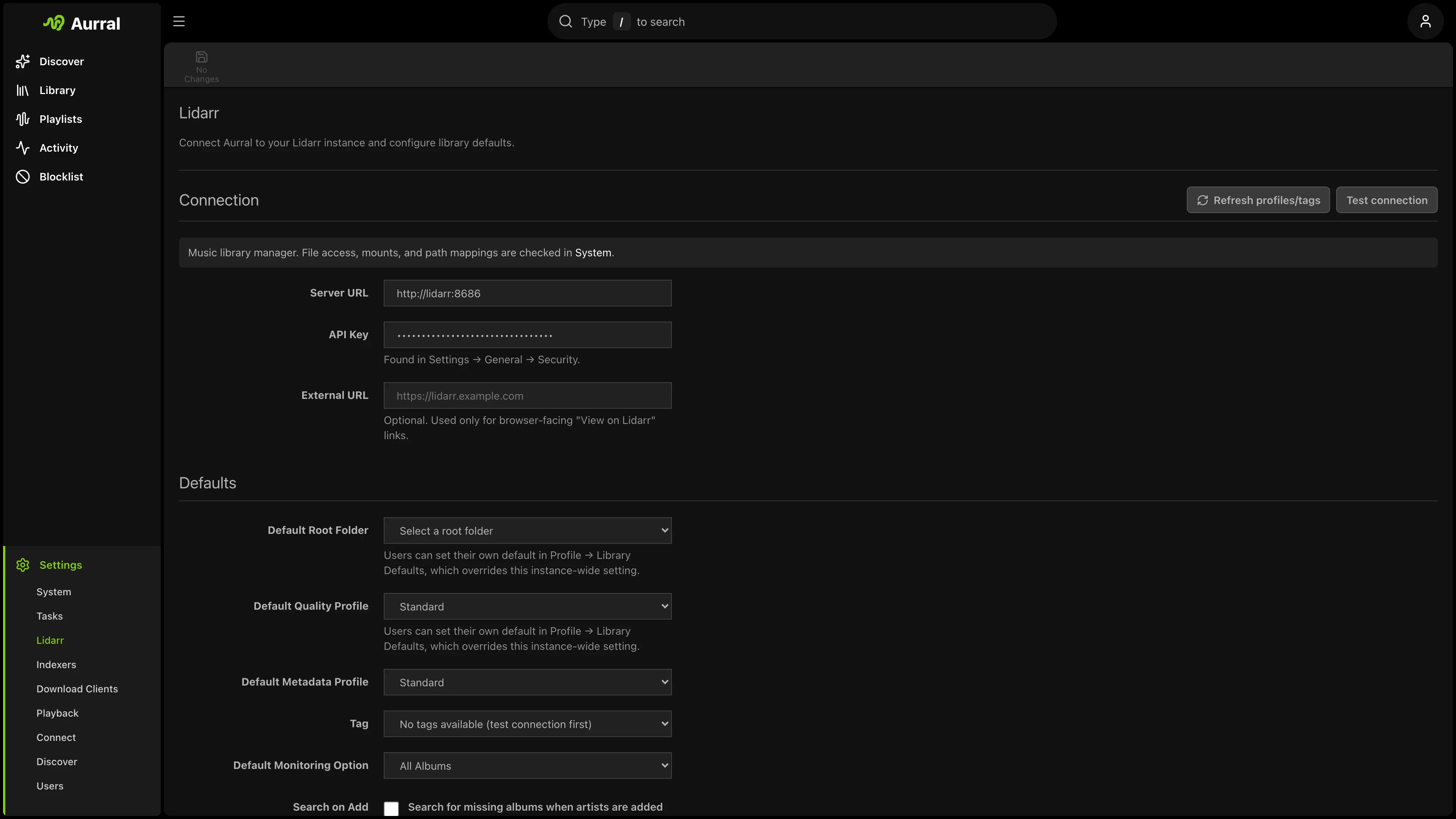
- Turn on Enabled.
- Set Server URL to the Lidarr URL that the Aurral server can reach. In Docker, this is often
http://lidarr:8686. Use HTTPS when the connection leaves your trusted network. - Enter the Lidarr API key.
- Select Test connection.
- Set the defaults for new artists: root folder, quality profile, metadata profile, tag, monitoring option, and Search on add.
- Optional: set External URL to the Lidarr address that your browser uses. Aurral uses it only for links that open Lidarr in the browser.
To apply the quality profile, custom formats, and file naming from Davo’s Community Lidarr Guide to Lidarr, select Apply recommended settings in the same tab. This action changes your Lidarr settings.
Turn Lidarr off
Section titled “Turn Lidarr off”Turning off Enabled and saving disconnects Lidarr’s root folders. Aurral removes Lidarr’s music from the Library, and downloads its own copy of playlist and flow tracks that used a Lidarr file. The files stay on disk, and Aurral keeps the connection details. Turn Enabled on again to add Lidarr’s music back. See Turning Lidarr off.
If Lidarr only stops answering, nothing is removed. The Lidarr tab says when Lidarr is off or unreachable.
If you want Aurral to manage the music that Lidarr downloaded, ingest Lidarr’s root folder before you turn Lidarr off. Copy or Hardlink leaves Lidarr’s library as it is. See Bring your existing music.
Library display
Section titled “Library display”Lidarr knows each artist’s whole discography, including albums that you have not downloaded. Show available music only in Settings > Lidarr decides which albums the Library lists:
- On, the default. The Albums list, the Album artists list, and the Recently added shelf show only albums with downloaded files. The library counts follow the same rule. An artist without downloaded music leaves the list, so an artist that you remove in Lidarr leaves the Library after the next scan.
- Off. The Library shows each artist’s whole Lidarr discography, including albums without files, labelled for example
0/10 available.
This setting changes only what the Library lists. You can still search for and request any album from the artist’s discography.
Add artists and albums
Section titled “Add artists and albums”When Lidarr is connected, Lidarr manages the artists and albums you add, but the buttons stay the same. Artists and albums that Aurral already has stay Aurral’s. Download album asks Lidarr for the album. On an artist page, Monitor adds the artist to Lidarr with your Lidarr defaults and sets its monitoring. To choose the root folder, quality profile, tag, or monitoring for one artist, select Customize add… in the Monitor menu. Aurral keeps downloading tracks for playlists, flows, and single tracks.
When Lidarr downloads or monitors an album that Aurral has tracks from, Lidarr takes the album over. See Who manages your library.
Metadata providers
Section titled “Metadata providers”Aurral uses the MusicBrainz ID in artist pages and links. It stores Lidarr’s own artist ID separately.
If Lidarr uses another metadata provider, such as the Tubifarry Deezer or Discogs provider, Aurral checks that the Lidarr artist matches the MusicBrainz artist. It accepts names that MusicBrainz lists as aliases. It asks Lidarr which provider is active, and it retries an add with the correct provider ID when Lidarr rejects the ID format. Aurral also checks and fills in provider IDs for existing Lidarr artists when it reads the library.
If the artists do not match, search for the artist in Lidarr first, or switch Lidarr to MusicBrainz metadata.
Library access check
Section titled “Library access check”To check that Aurral can read the Lidarr files, open Settings > Storage health and select Run checks. See the Lidarr library section. If the check fails, mount the Lidarr media root in Aurral. The recommended layout uses /data in both containers, with a Lidarr root folder such as /data/music.
The check reads one track of an artist inside a root folder. If no such artist exists, it reads a track of an artist outside the root folders, and reports that a root folder change left that artist behind. See Library access fails on a folder that is not your root folder.
In a mixed Windows and Docker setup, the check shows the exact path that Lidarr reports. If that path differs from the path inside Aurral, add a mapping in Settings > Download clients > Remote path mappings, with Applies to set to Lidarr.
This mapping only helps Aurral read Lidarr files. For Navidrome playlists, Navidrome must also scan the Lidarr music folder. See When paths cannot match.
How Aurral indexes Lidarr files
Section titled “How Aurral indexes Lidarr files”Aurral saves the Lidarr root folders locally. It reads them again from the Lidarr /rootFolder endpoint when it connects, reconnects, or when the root folders change.
When a file changes in a Lidarr root folder, Aurral scans that file on local disk. The scan does not ask Lidarr for artist, album, track, or track file data. The file must be readable at the saved root folder path. The Library uses the MusicBrainz IDs from the file tags and the provider IDs from Lidarr.
If a file does not appear in Library, select Refresh there. Refresh waits for the scan to finish. If the file still does not appear, run the storage checks and look for a path mismatch.
If Lidarr fails during a refresh, Aurral retries the scan instead of reporting it complete, and writes the error to the server log. A timeout error names the request method, the endpoint, and the configured timeout.
Request availability notifications
Section titled “Request availability notifications”To send Request available notifications as soon as Lidarr imports an album, add a webhook in Lidarr > Settings > Connect:
- Add a Webhook connection.
- Set the URL to
https://aurral.example.com/api/webhooks/lidarr. Use an Aurral address that Lidarr can reach. - Turn on the On Import event.
- Add an
X-Api-Keyheader with the Aurral API key from Settings > System.
Aurral accepts other Lidarr webhook events but ignores them. It updates request history only for the import event, which Lidarr sends as Download, and only for albums that users requested in Aurral. The Gotify and webhook event switches in Aurral still decide which notifications go out.
What Aurral changes
Section titled “What Aurral changes”Changes to Lidarr artists and albums go through the Lidarr API. Changes to Aurral artists and albums write to the Downloads Folder. Aurral never writes to or deletes files in a Lidarr root folder.
Import list feeds
Section titled “Import list feeds”Each flow can publish a URL that Lidarr reads as a Custom List.
- On Flows, open the flow, then open the flow menu.
- Select Copy Lidarr import URL.
- In Lidarr, open Settings > Import Lists and add a Custom List.
- Paste the URL.
The copied URL uses the Aurral address in your browser, for example https://aurral.example.com/api/feeds/.... Lidarr must be able to reach that address.
The feed always matches the flow’s current tracklist. It leaves out tracks without a MusicBrainz artist ID. It includes album IDs when they are known. Lidarr versions that support album-level custom lists use these IDs for Specific Album monitoring.